Published by December 24, 2025 · Reading time 19 minutes · Created by Lix.so
You can create a slideshow for Facebook by stitching together anywhere from 3 to 10 photos, turning them into a simple, video-like post. Think of it as a lightweight animated story that grabs attention without hogging data like a full-blown video.
This format perfectly marries the scroll-stopping power of a good photo with the smooth, narrative flow of a video, making it a surprisingly effective tool in any marketer's playbook.

In a feed that's more crowded than ever, slideshows give you a strategic edge. They hit that sweet spot right between a static image and a resource-heavy video, borrowing the best traits from both.
Let's be real—videos can be a big ask. They need a solid internet connection and often require sound to land their message, which is a major hurdle for anyone scrolling on their lunch break or commuting on a noisy train. Slideshows, on the other hand, load in a snap and get the point across visually, making them a perfect fit for today's mobile-first world.
The real magic happens when you use a slideshow to build a narrative. Instead of hoping a single image tells the whole story, you can walk your audience through a sequence, one slide at a time. It’s a simple but powerful way to guide their focus.
I've seen this work wonders for all sorts of business needs:
This format taps directly into what we already know works on Facebook: visuals. We’ve seen for years that photos and albums drive the most interaction, and slideshows just package that power into a more dynamic experience. After all, the data consistently shows that pictures earn 35% more engagement than plain text posts. You can dive deeper into Facebook content stats here.
To put this in perspective, let's look at how different content types stack up.
This table gives a quick look at where different formats stand. You'll notice that while video often leads in raw engagement time, its barrier to entry (creation cost, viewer commitment) can be high. Slideshows offer a fantastic middle ground.
| Content Type | Average Engagement Rate | Key Advantage |
|---|---|---|
| Video | 4.77% | High retention and emotional connection |
| Image Post | 3.42% | High initial stopping power, easy to consume |
| Slideshow | ~3-5% (Hybrid) | Combines visual appeal with storytelling flow |
| Link Post | 2.72% | Drives off-platform traffic directly |
| Text Post | 1.66% | Low creation effort, good for questions/discussions |
Slideshows effectively borrow the high stopping power of an image and pair it with the narrative potential of a video, often resulting in engagement rates that punch well above their weight class.
By transforming a series of static images into a moving story, you create an engaging piece of content that encourages viewers to pause, watch, and absorb your entire message from beginning to end.
Ultimately, when you create a slideshow for Facebook, you're not just uploading pictures—you're crafting a micro-story. This simple shift in approach is fantastic for boosting your reach, keeping your audience hooked for longer, and turning those passive scrollers into genuinely engaged followers.
Want to create snappy, video-like content without firing up a single piece of editing software? The slideshow creator built right into your Facebook Page is one of the fastest ways to get it done. It's perfect for quick announcements, behind-the-scenes looks, or a simple product showcase.
Everything happens inside the post composer you already use. Just head to your Facebook Page and act like you're creating a new post. Instead of just adding photos, look for the "Create Slideshow" option—that’s your starting point. While the process is simple, the choices you make here are what will make your slideshow stand out.

First things first, you need to upload your images. You can select between three and ten photos for a single organic slideshow. Don't just dump them in; think of this as a mini-storyboard. The order is everything.
Once the photos are uploaded, you can easily drag and drop them to get the sequence just right. This is your chance to control the narrative and make sure the story unfolds smoothly for your viewers.
With your images in order, it's time to fine-tune the delivery. Facebook gives you a few key settings that can completely change the vibe of your final post.
This is the main creator interface you'll be working in. It's clean and straightforward.
You’ll want to tweak these settings to match your content's goal:
Pro Tip: Don't skip the music! Facebook has a library of royalty-free tracks you can add right in the editor. Finding a track that matches the mood of your visuals can make a huge difference in keeping viewers engaged.
After dialing in these settings and writing a great caption, you're all set to publish. By being thoughtful about your sequencing and customization, you can create a slideshow for Facebook that feels polished and tells your story effectively.
Moving beyond organic posts, Meta Ads Manager is where a slideshow really starts to work for you. This is the control center for any serious paid campaign, letting you pinpoint specific audiences, manage your budget down to the dollar, and optimize for tangible goals like sales or leads. When you build a slideshow here, you're not just making content—you're crafting a strategic ad creative designed to perform.
The whole process kicks off at the campaign level. Before you even touch an image or think about music, you have to decide what you want people to do. Your campaign objective is everything. Are you just trying to get your slideshow in front of as many eyeballs as possible? The Reach objective is your friend. But if you need to drive a specific action, like a purchase or a form submission, you’ll want to build your campaign around Conversions or Leads.
Once your objective is locked in, you’ll drop down to the ad level to build the slideshow itself. This is where you bring everything together: uploading your visuals, layering on music, and adding text overlays. The interface gives you a ton of control over the final product.
You'll be spending most of your time in this Ads Manager interface, crafting and tweaking your campaigns.
Getting comfortable with this dashboard is the first step to launching ads that actually work. If you're feeling a bit lost, our comprehensive Facebook Ads Manager tutorial will get you up to speed on the platform's full potential.
There's a good reason to put in the effort. The data shows that video-like formats are a massive driver of Facebook's ad revenue, which is projected to hit a staggering $116.53 billion. Slideshows are your budget-friendly ticket into this world. In fact, some video ads can cost as little as 10% of what you'd pay for a static image ad, while drumming up 62% more product interest. When it comes to slideshows specifically, lead-generation campaigns have seen an average Click-Through Rate (CTR) of 2.53%—proof that they’re incredibly effective at getting people to act. You can find additional insights on Facebook ad performance here if you want to dig deeper into the numbers.
Making a slideshow for an ad is a different ballgame than creating one for your organic feed. Here, your mission is to grab attention and push for a specific outcome, all within a few fleeting seconds.
Keep these core principles in mind:
A killer slideshow ad isn't just a montage of nice photos. It's a high-speed, visual sales pitch. Every single element—the images, the transitions, the text—has to work together to pull a user from casual interest to a decisive click.
By sticking to these guidelines within Ads Manager, you can create powerful slideshow ads that not only look slick but directly fuel your campaign goals, turning passive scrollers into paying customers.
Alright, so you've put your slideshow together. That’s the first step. But turning that sequence of images into something that actually performs? That’s where the real work begins. It’s all about tweaking every little detail to stop the scroll and keep people watching in a super-crowded feed.
Getting the technicals right is the foundation. Blurry or poorly cropped images are an instant turn-off. For a square format that takes up prime real estate on mobile, you want to stick with 1080x1080 pixels. If you're aiming for Stories or Reels, a vertical 1080x1920 pixel format is a must for that immersive, full-screen feel. For a deep dive on all the different ratios, check out our complete guide to Meta ad sizes.
Here’s a pro tip: don't just think of your slideshow as a simple post. The smartest move right now is to treat it as the raw material for a Facebook Reel. Reels are one of the most powerful organic growth engines on the platform, and your slideshow already has all the pieces of a great short-form video.
The numbers don't lie. Over 616 million people watch Facebook Reels every month, and they pull in 22% higher engagement than regular video posts. Meta even reports that 3.5 billion Reels are reshared daily. To tap into this, aim to convert your slideshow into a punchy 15-30 second Reel—that’s the sweet spot where you'll see 45% higher completion rates. Adding music can lift performance by 89%, and using relevant trending hashtags can give you a 156% boost.
You literally have three seconds. Maybe less. If you don't grab someone's attention in that tiny window, they're gone. Forget the slow build-up or the fancy branded intro—you have to hit them with a powerful hook right away.
Try one of these proven tactics to stop the scroll:
The mission is to signal value and spark curiosity instantly. If you fail here, the rest of your slideshow might as well not exist.
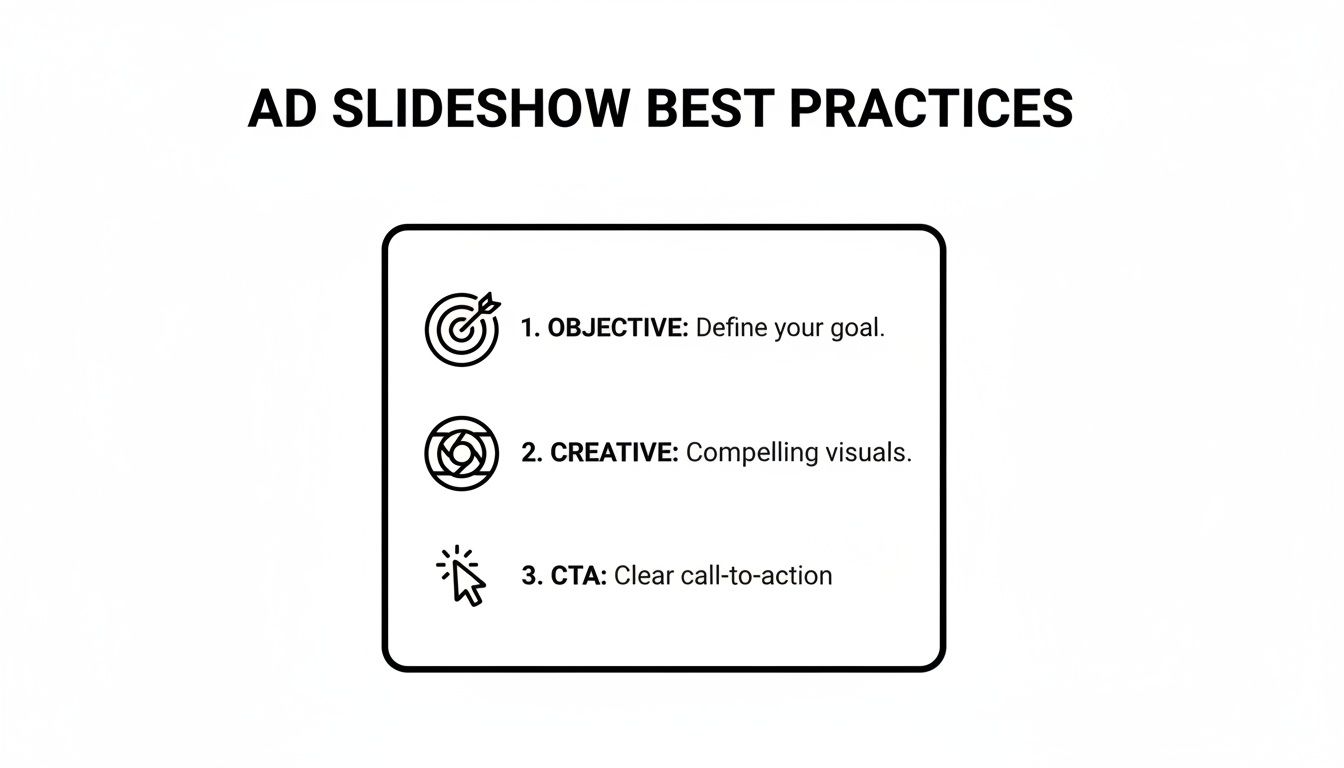
This image nails the core idea: a winning ad slideshow balances a clear objective with compelling creative and a direct call-to-action. You have to tell people what to do next.
Finally, don't underestimate the power of audio. The right sound can make a massive difference. The Facebook algorithm often gives a little extra love to content using trending sounds. Take a few minutes to scroll through the Reels tab, see what's popular, and find a track that matches your brand's vibe without feeling forced.
To help you keep all the key specs straight, here's a quick-reference table with our top recommendations. Think of it as your cheat sheet for creating slideshows that look great and perform even better.
| Element | Recommendation | Reason |
|---|---|---|
| Image Resolution | 1080x1080 (Square) or 1080x1920 (Vertical) | Ensures high-quality, crisp visuals that fill the screen on mobile devices. |
| Image Format | .JPG or .PNG | Universal formats that offer the best balance of quality and file size for fast loading. |
| Number of Images | 3 to 10 images | Provides enough variety to tell a story without overwhelming the viewer or causing drop-off. |
| Slide Duration | 0.5 to 5 seconds per image | Keeps the pace dynamic. Use shorter durations for quick cuts and longer for detailed visuals. |
| Total Length | Under 15 seconds | Caters to short attention spans and aligns with the optimal length for Reels and short-form video. |
| Music | Use trending audio from Facebook's library | The algorithm often prioritizes content using popular sounds, increasing organic reach. |
| Text Overlay | Concise and bold, covering <20% of the image | Makes your message scannable for users watching with the sound off. |
| Call-to-Action | Clear and direct (e.g., "Shop Now," "Learn More") | Tells the viewer exactly what to do next, which is crucial for driving conversions. |
Following these guidelines isn't just about making your slideshow look good; it's about making sure it works hard for you. Crisp visuals, the right pacing, and a clear message are what separate a slideshow that gets ignored from one that gets results.
Sure, Facebook’s built-in slideshow maker is decent for a one-off project. But what happens when you need to make 10? Or 50? It quickly becomes a massive bottleneck.
Picture this: you're running an e-commerce store with dozens of new products. The thought of manually uploading, sequencing, and customizing a unique slideshow for each one is enough to make any marketer's head spin. That’s where specialized third-party apps come in—they completely transform your workflow from a chore into a strength.
Instead of slowly building slideshows one by one, these tools turn the entire process into a scalable content machine. You get to ditch the tedious, repetitive clicking and free up hours that are far better spent on analyzing campaigns and refining your strategy.
The real magic of using a dedicated tool is the ability to work in bulk. Platforms like Lix.so are designed from the ground up to handle high-volume creative production. The concept is simple but incredibly powerful: connect a data source (like a spreadsheet), apply a design template, and let the software generate hundreds of unique videos for you.
This is an absolute game-changer for anyone with a large catalog or an agency juggling multiple clients. Think about these real-world scenarios:
By connecting your data directly to a creative template, you eliminate almost all the repetitive work. This shift lets you produce highly relevant, personalized content for different audience segments without the soul-crushing manual labor that usually comes with it.
This isn't just about making the videos faster; it's about integrating creation with publishing. Once you have a library of freshly generated slideshows, the next logical step is getting them into your campaigns.
The Lix.so interface shows just how seamless this can be. You can see how a simple data source is transformed into a full library of ready-to-use video creatives for your ads.
The best tools for this often include features for bulk scheduling or even direct integration with Ads Manager. In practice, this means you can crank out a month's worth of content in a single afternoon and have it all queued up and ready to go.
For anyone managing complex campaigns, our guide on using a Facebook ads bulk video uploader dives deeper into this streamlined process. At the end of the day, when you need to create a slideshow for Facebook in any significant quantity, automation stops being a "nice-to-have" and becomes absolutely essential for maintaining momentum and achieving real scale.
Even when you have a solid plan, a few nagging questions always seem to pop up once you get into the nitty-gritty of making a slideshow. Let's tackle some of the most common ones that can throw a wrench in your workflow, so you can get back to creating.
The sweet spot for a Facebook slideshow is between 3 and 10 photos. That's the limit Facebook's own tools impose, and honestly, it’s for a good reason.
If you use fewer than three images, you often can't build a compelling narrative, and the post just feels… incomplete. On the flip side, pushing past seven or eight photos can cause people to drop off, especially for organic posts where attention spans are microscopic.
For paid ads, being even more concise is crucial. I’ve found that 3-5 powerful images that get straight to the point deliver the best results and keep your cost-per-result from creeping up. Every single image has to earn its spot.
Yes, you absolutely can, but there's a big string attached. Both the organic post creator and Ads Manager let you upload your own audio file. However, you must have the legal rights and commercial license to use that music.
Tossing a popular, copyrighted song on your ad without permission is the fastest way to get your video muted or taken down by Facebook. It’s just not worth the risk.
To dodge any copyright headaches, the safest and smartest move for any business account is to use Facebook's Sound Collection. It’s loaded with royalty-free music and sound effects that are pre-cleared for you to use in any post or ad.
The ideal aspect ratio really comes down to where your audience will see the slideshow. You can use a traditional landscape (16:9) format, but it just doesn't pack the same punch on mobile.
Here's a quick breakdown of what actually works:
When you create a slideshow for Facebook, always think mobile-first. Choose the aspect ratio that gives you the most screen real estate for your most important placement.
Ready to stop building slideshows one by one and start producing them at scale? Lix.so can generate hundreds of unique video creatives from a simple spreadsheet or product feed in minutes. Try our 7-day free trial and see how much time you can save. Get started with Lix.so.
Create hundreds of Facebook Ads campaigns in minutes with Lix.so. Batch creative upload, reusable templates, and automatic campaign generation.
✓ Free for 14 days · ✓ No credit card required · ✓ Cancel anytime

